Efficiently managing your breaks is essential for maintaining productivity and avoiding burnout. ClockitUp makes it simple to track and manage your breaks right from your dashboard. Follow these steps to seamlessly manage your breaks using ClockitUp’ S user-friendly interface.


Step 1: Locate the Break Options
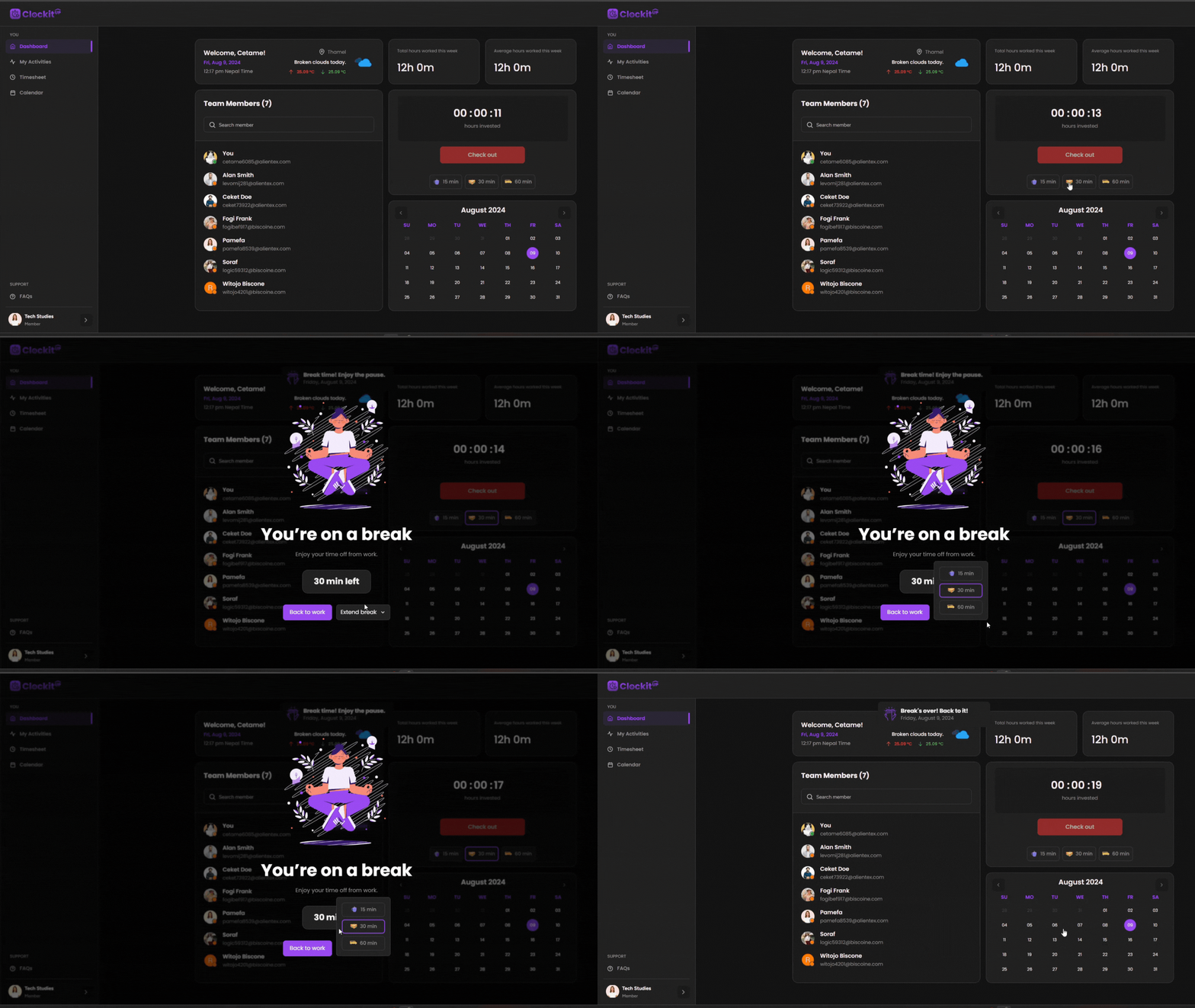
Once you’ve logged into your ClockitUp account and are on your ClockitUp Dashboard, you’ll find the break options conveniently located just below the “Check out” button. This placement ensures that managing your breaks is as accessible as possible.
Step 2: Select Your Break Duration
ClockitUp offers flexible break durations to accommodate your needs. You can choose from the following options:
- 15 Minutes: Perfect for a quick recharge.
- 30 Minutes: Ideal for a lunch break or a slightly longer pause.
- 60 Minutes: Suitable for extended breaks or meal times.
Simply click on the duration that suits your current needs.
Step 3: Manage Your Break Status
After selecting your desired break duration, a dropdown menu will appear with further options:
- Extend Break: If you need more time to relax or finish a task during your break, select this option. You can extend your break without having to start a new one.
- Back to Work: Ready to get back to work? Choose this option to end your break and resume tracking your working hours.